Technical SEO Audit for Beginners: Where to Start
A plain-English guide to running your first technical SEO audit — what to check, what to fix first, and how to stop guessing why Google isn't ranking your site.
# Technical SEO Audit for Beginners: Where to Start
If your website isn't showing up in search results — or it is, but fewer people than expected are clicking — there's a good chance something technical is quietly working against you. Not a content problem. Not a keyword problem. A plumbing problem.
A technical SEO audit is how you find those plumbing problems. It looks at whether search engines can actually find, read, and understand your site. Content quality matters, but it can't compensate for a site Google can't fully crawl.
You don't need to be a developer to run one. This guide walks you through the most important checks, in order, without the jargon.

What Technical SEO Actually Covers
Technical SEO is the set of factors that affect how search engines access, crawl, index, and render your site. It's distinct from on-page SEO (title tags, headings, content) and off-page SEO (backlinks, mentions).
Technical issues create a ceiling. Even excellent content on a site with broken crawling, slow load times, or mixed HTTPS signals will underperform. The main areas a technical audit covers:
- Crawlability — can search engines reach your pages?
- Indexation — which pages are in Google's index, and which shouldn't be?
- Page speed and Core Web Vitals
- Mobile usability
- HTTPS and security
- Structured data
- Duplicate content and canonical tags
- Internal linking and site structure
Prioritize by impact: crawl and index issues first, then speed, then the rest.
Step 1: Check Whether Google Can Find Your Site
Before anything else, confirm Google has indexed your site and isn't blocked from crawling it.
Quick check: Type site:yourdomain.com into Google. You'll see the pages Google has indexed. Zero results, or far fewer than expected, means something is blocking Google.
What to look for:
- Your
robots.txtfile (atyourdomain.com/robots.txt) shouldn't containDisallow: /— this tells crawlers to stay out entirely. A misconfigured robots.txt is one of the most common reasons a site disappears from search after a redesign. - Pages shouldn't have a
tag unless you intentionally want them hidden. - In Google Search Console (free), go to Coverage to see which pages are indexed, which are excluded, and why.
Checklist:
- [ ]
site:yourdomain.comreturns expected results - [ ]
robots.txtdoesn't block important pages - [ ] No unintentional
noindextags on key pages - [ ] XML sitemap exists and is submitted to Google Search Console

Step 2: Fix Crawl Errors
Once you know Google can find your site, look at what it's finding that's broken.
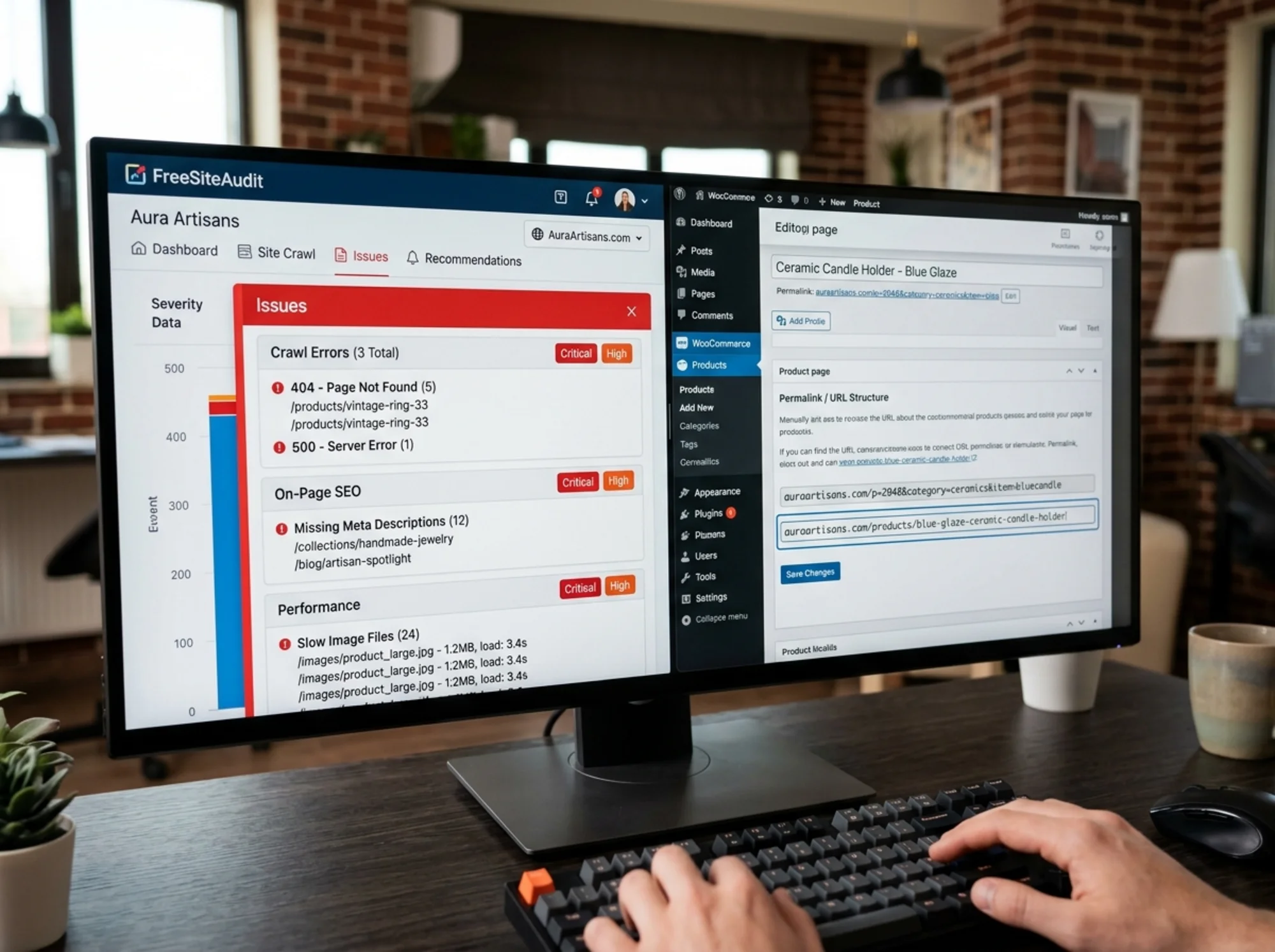
404 errors happen when a page used to exist but no longer does — often after renaming a URL, deleting a product, or migrating a site. Google crawls old links from its index, hits a 404, and over time may drop those pages entirely.
Redirect chains happen when URL A redirects to URL B, which redirects to URL C. Each hop adds latency and dilutes link equity. Chains longer than two hops should be collapsed to a single direct redirect.
A restaurant owner relaunched their site and changed all their URLs. The old /about-us became /about. Their old site had backlinks pointing to /about-us, which now returned a 404. Six months later, they couldn't figure out why their "About" page ranked for nothing — the backlinks were pointing into a void. A 301 redirect from the old URL to the new one resolved it within a few weeks.
Checklist:
- [ ] No important pages returning 404
- [ ] 301 redirects in place for any changed or deleted URLs
- [ ] Redirect chains collapsed to single redirects
- [ ] Internal links updated to point directly to final URLs
Step 3: Check Page Speed and Core Web Vitals
Google uses page experience signals, including Core Web Vitals, as ranking factors. More importantly, slow pages drive users away before they convert.
Core Web Vitals are three metrics Google uses to measure real-world page experience:
- LCP (Largest Contentful Paint): How long the main content takes to load. Target: under 2.5 seconds.
- INP (Interaction to Next Paint): How responsive the page is to clicks and taps. Target: under 200ms.
- CLS (Cumulative Layout Shift): How much the page jumps around as it loads. Target: under 0.1.
You can check these in Google Search Console under Core Web Vitals, or review the metrics guide at web.dev/articles/vitals.
The most common culprits for slow scores:
- Unoptimized images. A product photo uploaded at 4000px wide and 8MB doesn't need to be that size for a 400px thumbnail. Compress images before uploading, or use a plugin that handles it automatically.
- Render-blocking scripts. Third-party scripts (chat widgets, analytics, ad pixels) that load in the
delay everything. Move them to load after main content. - No caching. Static files like images and CSS should be served with long cache lifetimes so repeat visitors don't re-download them.
Checklist:
- [ ] LCP under 2.5 seconds on mobile
- [ ] No large unoptimized images (flag anything over 500KB)
- [ ] Third-party scripts deferred where possible
- [ ] Server response time (TTFB) under 800ms
Step 4: Verify Mobile Usability
Google uses mobile-first indexing, meaning the mobile version of your site is what it primarily crawls and ranks — even for desktop users. If your site isn't fully functional on a phone, it will underperform regardless of desktop experience.
Quick checks:
- Google Search Console → Mobile Usability shows flagged issues
- Open your site on your actual phone and navigate as a customer would
- Look for: text too small to read without zooming, buttons too close to tap, content wider than the screen
The most common mobile issue on small business sites is a plugin or widget that was never tested on mobile. A sticky chat button that covers the main CTA, or a table that doesn't scroll horizontally, can tank usability scores.
Checklist:
- [ ] Site passes Google's Mobile Usability report
- [ ] Text readable without zooming
- [ ] Tap targets at least 44x44px
- [ ] No horizontal scrolling on mobile
Step 5: Confirm HTTPS Is Set Up Correctly
Every page on your site should load over HTTPS. If any page loads over HTTP, browsers show a "Not Secure" warning and Google treats it as a negative signal.
The issue isn't just having an SSL certificate — it's having it applied consistently.
Things that break HTTPS:
- Mixed content: a page loads over HTTPS, but images or scripts are referenced with
http://URLs. Browsers partially block these. - The HTTP version of the site not redirecting to HTTPS
- An expired SSL certificate (more common than it should be)
Quick check: Visit http://yourdomain.com and confirm you're automatically redirected to https://. Then check your browser's padlock icon — a warning means there's a mixed content issue.
Checklist:
- [ ] SSL certificate is valid and not expired
- [ ] All HTTP URLs redirect to HTTPS
- [ ] No mixed content warnings in the browser console
- [ ] Both
yourdomain.comandwww.yourdomain.comresolve correctly and consistently
Step 6: Look for Duplicate Content
Duplicate content confuses search engines about which page to rank. Common causes:
www.yourdomain.comandyourdomain.comserving the same content without canonicalization- URL parameters creating duplicates (e.g.,
/products?color=blueand/products?color=redrendering the same layout) - Pagination where page 1 and page 2 have minimal content differences
The fix is a canonical tag: a line in the that tells Google which version of a page is the authoritative one.
html
Checklist:
- [ ] Canonical tags present on all key pages
- [ ]
wwwand non-wwwversions canonicalize to one consistent version - [ ] URL parameters handled via canonical or Search Console parameter settings
- [ ] No accidental duplicate pages from CMS tag or category combinations
Step 7: Add Structured Data Where It Applies
Structured data is code you add to a page that explicitly tells Google what the content means — not just what it says. It enables rich results in search: star ratings, event dates, FAQ dropdowns, product prices.
For most small businesses, the highest-value types are:
- LocalBusiness — name, address, phone, hours
- Product — price, availability, rating
- Article — for blog posts
- FAQPage — for pages that answer common questions
You don't need to write the code by hand. Most CMS platforms (WordPress with Yoast or RankMath, Shopify, Squarespace) add basic structured data automatically. The audit check is whether it's present and valid.
Use Google's free Rich Results Test to check any page — it shows what structured data is detected and whether it has errors.
Checklist:
- [ ] LocalBusiness schema on contact or home page
- [ ] Product schema on product pages
- [ ] Article schema on blog posts
- [ ] No errors in Google's Rich Results Test
Putting It Together: A Simple Walkthrough
Say you run a local accounting firm. Your site has been live for two years, you've published helpful content, but organic traffic is flat. Here's how a first audit pass might go:
site:yourfirm.com— 12 pages indexed. Looks right.- robots.txt — clean, no blocks.
- Google Search Console → Coverage — 4 pages excluded with "Duplicate, Google chose different canonical." Your
/services/and/services(no trailing slash) are both indexed as separate pages. Add a canonical to one. - Core Web Vitals — LCP is 4.2 seconds on mobile. Main culprit: a 3MB hero image. Compress it to under 200KB, LCP drops to 1.9 seconds.
- HTTPS — site is HTTPS but the old
http://version doesn't redirect. Fix at the hosting level. - Mobile usability — one issue: "Clickable elements too close together" on the contact page. The phone number link and email link are stacked with 2px gap. Increase padding.
- Structured data — no LocalBusiness schema. Add it via the CMS SEO plugin.
None of these required a developer. Total fix time: a few hours spread over a week. That's a realistic first audit pass.
Start With a Free Audit
If you'd rather see your site's technical issues listed in one place before you start digging, run a free audit at FreeSiteAudit. It checks crawlability, page speed, meta tags, HTTPS, mobile usability, and more — no account required.
The report shows issues by severity so you know what to fix first. It's a faster starting point than checking each item manually.
Summary Checklist
Crawl & Index
- [ ]
site:yourdomain.comreturns expected pages - [ ] robots.txt not blocking key content
- [ ] XML sitemap submitted to Search Console
- [ ] 404 errors resolved with 301 redirects
Speed & Experience
- [ ] LCP under 2.5s on mobile
- [ ] Images compressed
- [ ] Third-party scripts deferred
Technical Basics
- [ ] HTTPS working with no mixed content
- [ ] Mobile usability passing
- [ ] Canonical tags on key pages
- [ ] Structured data present and valid
Sources
- Google Search Central — Creating helpful, reliable, people-first content: https://developers.google.com/search/docs/fundamentals/creating-helpful-content
- Google Search Central — Structured data for articles: https://developers.google.com/search/docs/appearance/structured-data/article
- web.dev — Core Web Vitals: https://web.dev/articles/vitals
Check your website for free
Get an instant score and your top 3 critical issues in under 60 seconds.
Get Your Free Audit →